
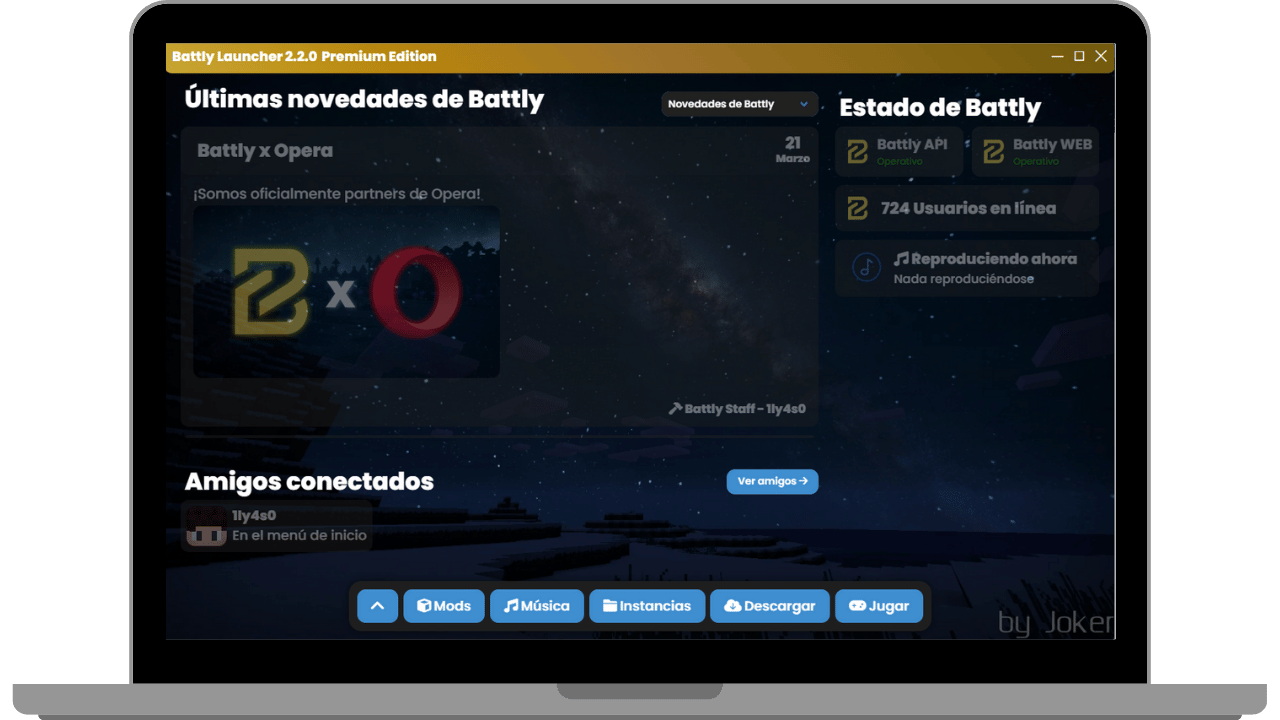
Battly is a Minecraft Launcher focused on security, speed, efficiency, and adaptability for any user. Thanks to its features, Battly ranks among the best launchers on the market.
Discover more
Compatible with Windows 7-11, macOS, Linux, and Android.
Here’s a step-by-step guide on how to invert colors on Windows, covering the built-in methods for and Windows 11 . Method 1: Turn on Color Filters (Easiest for full inversion) This method uses the Color Filters feature, which includes a global invert option.
Settings → Accessibility → Contrast themes (choose “Night sky” or “Aquatic”). Windows 10: Settings → Ease of Access → High contrast (turn on toggle). Quick Summary Table | Method | Shortcut | Best for | | :--- | :--- | :--- | | Color Filters | Win + Ctrl + C (after enabling) | Permanent, system-wide inversion. | | Magnifier | Ctrl + Alt + I (when Magnifier is running) | Temporary use, quick toggle. | | High Contrast | Left Alt + Left Shift + Print Screen | Visual comfort, not true invert. |
Color filters and Magnifier invert colors everywhere (including photos, videos, and desktop). To turn them off, simply repeat the steps or use the shortcuts.